How do I set the day and date on a vintage Casio?
How do I set the day and date on a vintage Casio?
The date fields live in the same setting cycle as the time — they're just further along, which is why people find the hours and minutes and then give up one button-press too early.
Getting there: hold the top-left button until the display flashes (seconds first, usually), then press the bottom-left MODE button repeatedly. After seconds → hours → minutes, keep going: the cycle continues into year, month and day. Advance whichever field flashes with the bottom-right button. The full walkthrough of the standard layout is in the 4-button guide.
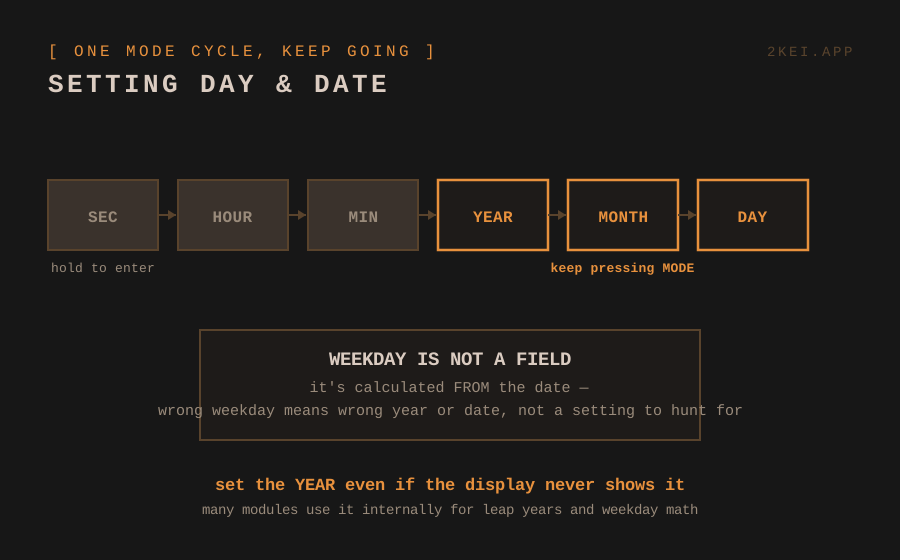
The day of the week is not a field. On nearly every Casio module the weekday is calculated from the date. If MON shows when it's Sunday, don't hunt for a weekday setting — your date (or year) is wrong. Which leads to:
Set the year even though the display doesn't show it. Many vintage modules display only month and day but still keep a year internally for leap-day math and the weekday calculation. If your setting cycle offers a year field, set it truthfully — a wrong year is why some watches show the wrong weekday with a seemingly correct date.
The month/day order trap: some modules display month-day, others day-month, and a few let you choose. When the display says 6-30, know which side is the month on YOUR module before "fixing" it — swapping them is the classic self-inflicted bug. Thirty seconds with the module's manual settles it (how to find it).
Vintage reality check: modules from before the 2000s often track dates only up to some internal limit, and a very old module may not know recent years exist — the weekday can be off even with everything "right". It's a quirk, not a fault; collectors set the closest year with matching weekdays and move on.
A DIGITAL HOME FOR YOUR DIGITAL WATCHES
Collection, batteries, and the story behind each piece. Free to start.
→ START FREE